OnStream for TV: Install on Firestick, Android TV and Smart TV (2026)
Watch on the big screen. Install OnStream on a Firestick or Android TV box in a few minutes, or cast it from your phone if you have a Samsung or LG smart TV.
Works on Firestick, Android TV & more · Updated 22/09/2026
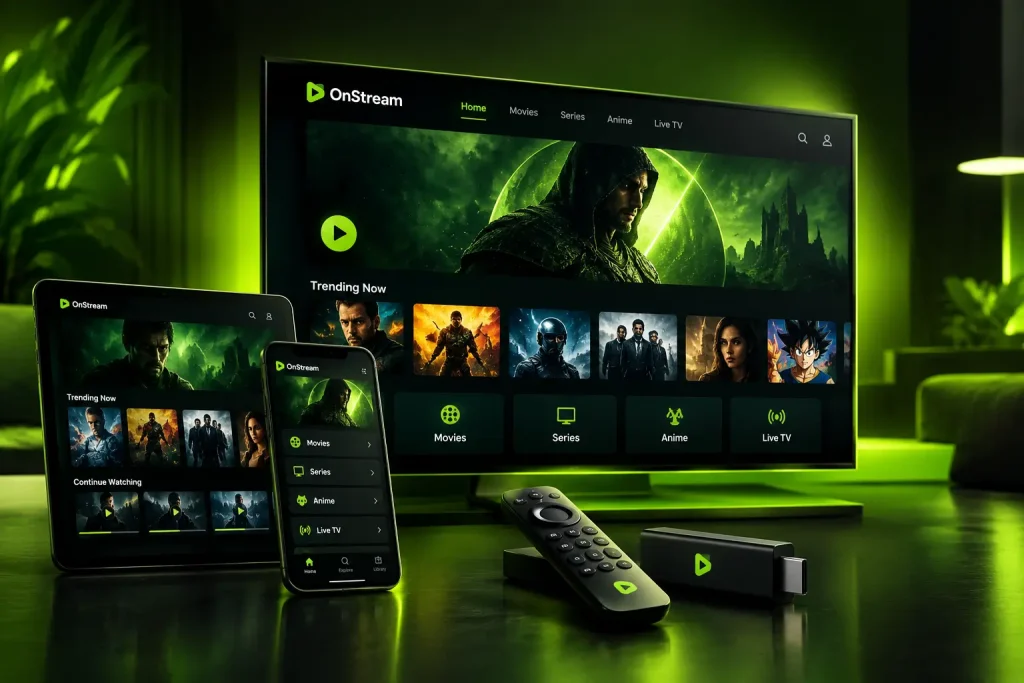
Watching on the big screen is one of the most common reasons people install the OnStream TV app, and it runs on most TV devices that are built on Android. This guide covers which TVs support it, how to install OnStream on a Firestick and on Android TV, what to do on a Samsung or LG set, and the safety points worth knowing. It also flags an important 2026 change that affects the newest Fire TV Stick models.
# Can You Get OnStream for TV?
OnStream is an Android app, so it works on televisions and streaming devices that run an Android-based system. That covers Android TV boxes, Google TV devices, and Amazon Fire TV, where you sideload the app because it is not in the Amazon Appstore or on Google Play.
It does not run directly on televisions that use a different operating system. Samsung TVs (Tizen) and LG TVs (webOS) are not Android, so on those you either cast from a phone or plug in an external streaming device. Both routes are covered below.
# Which TV Devices Support OnStream?
OnStream TV support depends on the operating system your device runs, and one recent change matters here.
|
Device / platform |
Can it install OnStream? |
|
Fire TV Stick 4K, 4K Max, Fire TV Cube (Fire OS) |
Yes, by sideloading |
|
Android TV boxes and Nvidia Shield |
Yes |
|
Google TV devices (Chromecast with Google TV) |
Yes |
|
Fire TV Stick 4K Select and newer VegaOS models |
No, VegaOS blocks APK sideloading |
|
Samsung Smart TV (Tizen) |
No, cast or use a TV box |
|
LG Smart TV (webOS) |
No, cast or use a TV box |
The important detail: Amazon’s newest streaming sticks, including the Fire TV Stick 4K Select, run a new system called VegaOS instead of Fire OS. VegaOS removes APK sideloading, so the Downloader app and manual installs do not work on those devices. If you own one, casting from a phone is the way to watch on that TV.
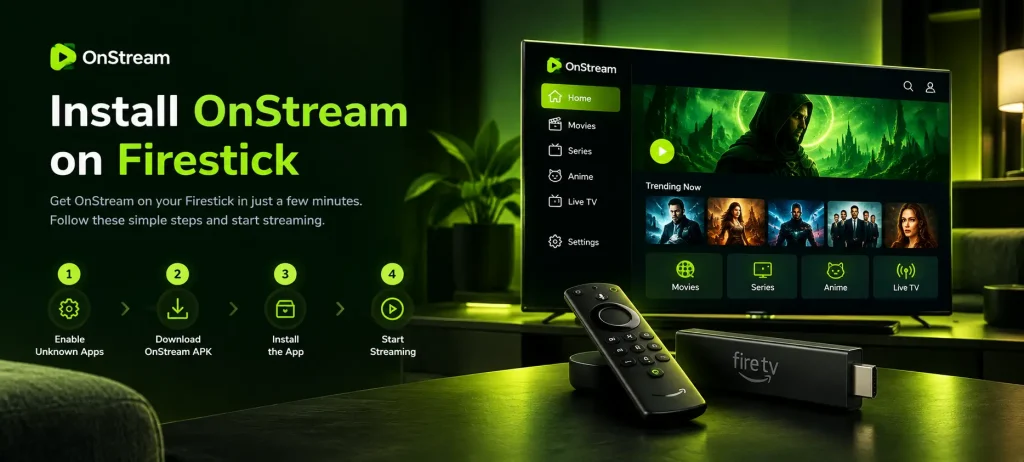
# How to Install OnStream on a Firestick
On a Fire OS device such as the Fire TV Stick 4K or 4K Max, you sideload the OnStream TV app with the free Downloader tool. The whole process takes a few minutes.
1
From the Fire TV home screen, open Settings, then My Fire TV, then Developer Options. If you do not see Developer Options, open About, highlight your device name, and press the select button seven times to unlock it.
2
Turn on Install Unknown Apps (older Fire OS calls this Apps from Unknown Sources).
3
Go back to the home screen, search for the Downloader app, and install it from the Amazon Appstore.
4
In the Install Unknown Apps list, find Downloader and switch its permission on.
5
Open Downloader, enter the address of the official OnStream APK from a source you trust, and let it download.
6
When the file finishes, select Install, then open the app and start browsing with your remote.
If you see an App Installation Blocked message, that is Amazon’s anti-piracy check, explained further down.
# How to Install OnStream on Android TV or Google TV
The steps are similar on an Android TV box or a Google TV device, with one extra step on Google TV.
- On a Google TV device, first unlock Developer Mode: open Settings, then System, then About, and press Build Number about seven times until it confirms you are a developer. Standard Android TV boxes may not need this.
- Go to the security or apps section and allow unknown sources for the app you will use to install, such as Downloader or a file manager.
- Use Downloader or a USB drive to bring the OnStream APK onto the device.
- Open the file, select Install, then open the app and start watching.
# OnStream on Samsung and LG Smart TVs
Samsung televisions run Tizen and LG televisions run webOS. Neither is Android, so the OnStream APK for Smart TV models will not install directly on them. You have three practical options:
# Cast OnStream from Your Phone to a TV
Casting is the quickest route when you cannot install the OnStream TV app on the television itself, and it is the main option for VegaOS Fire TV sticks, Samsung and LG sets.
- Connect your phone and your TV, or casting device, to the same Wi-Fi network.
- Open the app on your phone and start playing a title.
- Tap the cast icon in the player and choose your TV or Chromecast.
- The video plays on the big screen, and your phone works as the remote.
# Features on the Big Screen
On a television, the OnStream TV app keeps the same catalogue and adapts it for a remote. You get a grid-style layout that is easy to move through with the directional pad, the full library of movies, shows and live TV, HD playback that scales to a larger screen, and subtitle options during playback. Live TV in particular feels better in the living room than on a phone, which is a common reason to set the app up on a TV in the first place.
# OnStream Not Working on TV? Fixes for Common Problems
Most TV issues have a quick fix. Work through these in order.
# Is It Safe and Legal on TV?
The cautions are the same on a television as on a phone. The OnStream TV app is unofficial and installs from outside the official stores, so only sideload it from a source you trust, and keep to the latest version. It also streams unlicensed content, which is unlawful in some regions, so the responsibility for how it is used sits with the viewer. There is a fuller breakdown on the is OnStream safe page, and licensed apps built into most smart TVs remain the safer option.
# Frequently Asked Questions
# The Bottom Line
The OnStream TV app works well on the big screen when your device runs Fire OS or Android TV, and it installs cleanly with the Downloader app in a few minutes. The main thing to check first is your device: the newest VegaOS Fire TV sticks, along with Samsung and LG sets, cannot install the APK, so casting from a phone is the route there. As with every version, it is unofficial and relies on unlicensed content, so sideload only from a trusted source, keep it updated, and weigh the safety and legal points before you begin.