
No app for PC? Use web or emulator
OnStream for PC: Watch on
Windows and Mac
There is no native OnStream app for PC. Watch instantly through any browser with nothing to install, or run the Android app inside a free emulator like BlueStacks for offline downloads.
No installation needed · Updated 21/09/2026 · Windows & Mac
Method
Web or Emulator
Setup
None to Moderate
Requires
Windows 8+/macOS
Price
Free
There is no desktop program for OnStream, but you can still watch on a computer by running the Android app inside a free emulator. This guide explains how to set up OnStream for PC on Windows and Mac, which emulator to pick, the system requirements that actually matter, and the honest safety points. The steps work the same whether you call it OnStream for PC, OnStream on a laptop, or OnStream for Windows.
# Is There an OnStream App for PC?
There is no official OnStream program you can download for Windows or Mac. The app was built for Android, not as a native desktop application, so any site offering an OnStream for PC installer as a “.exe” should be treated with caution.
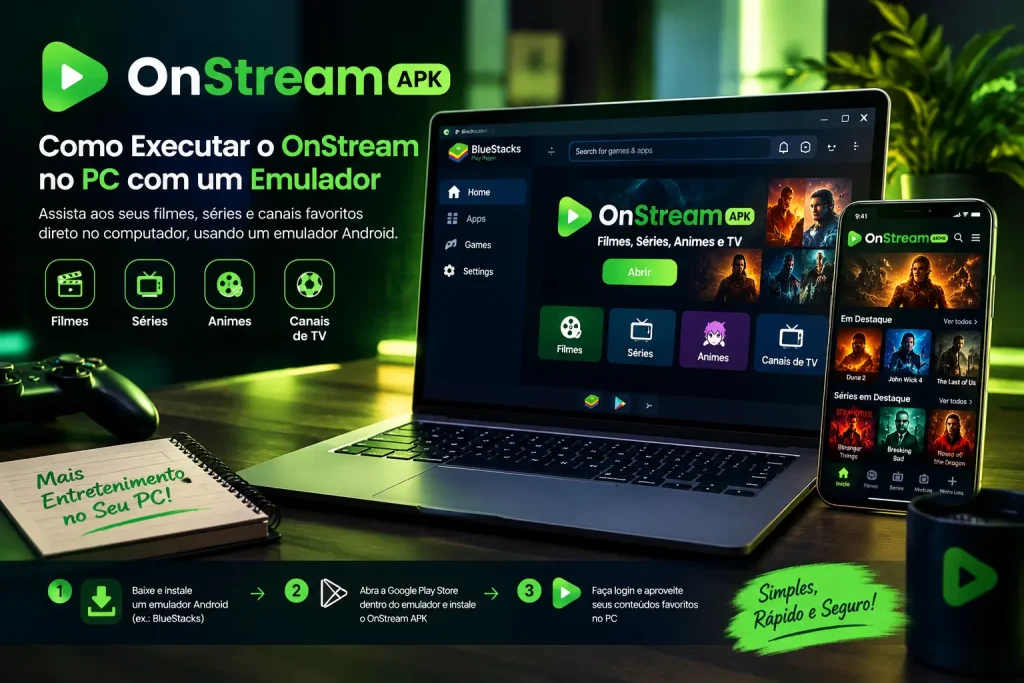
What you can do is run the Android version inside an emulator. An emulator creates a small Android environment on your computer, which lets you install and use the app with a mouse and keyboard, on a much larger screen than a phone.
# How to Run OnStream on PC with an Emulator
Setting up OnStream for PC through an emulator takes a few steps, and the drawback is covered at the end of this section.
What You Need
A Windows or Mac computer that meets the requirements further down, and a free Android emulator. The two most widely used are BlueStacks and LDPlayer. BlueStacks runs on both Windows and Mac, including Apple Silicon Macs through a version called BlueStacks Air. LDPlayer is Windows only.
he Steps
1
Download and install your chosen emulator from its official website.
2
Open the emulator and finish the first-time setup.
3
Download the OnStream APK from a source you trust.
4
Drag the APK file into the emulator window, or open it with the emulator’s built-in file manager, to install it.
5
Launch the app from the emulator’s home screen and browse with your mouse and keyboard.
The Catch
An emulator uses a fair amount of memory and processing power, so on an older or low-spec computer it can run slowly. Enabling hardware virtualization, covered below, makes a big difference to how smoothly it runs.
# Best Emulators for OnStream in 2026
Both options are free and install the app the same way, but they suit different computers. The details below reflect the current 2026 builds.
|
Point |
BlueStacks 5 |
LDPlayer 14 |
|
Windows support |
Windows 7 and above |
Windows 10 / 11, 64-bit only |
|
Mac support |
Yes, incl. Apple Silicon (BlueStacks Air) |
No native Mac support |
|
Minimum RAM |
4 GB (8 GB recommended) |
2 GB (8 GB or more recommended) |
|
Disk space |
5 GB minimum, SSD recommended |
Around 36 GB recommended |
|
Best for |
Most users, and any Mac |
Windows PCs with spare storage |
For the majority of people, and for anyone on a Mac, BlueStacks is the simpler choice. LDPlayer is a solid Windows alternative if you have the disk space to spare.
# System Requirements for OnStream on PC
Running an emulator is more demanding than a browser tab. As a general guide for a smooth experience, aim for:
# Features on a Computer
On a desktop, OnStream for PC keeps the core the app is known for: a large library of movies, TV shows, web series and live TV, HD playback on a bigger monitor, subtitle options during playback, and multiple servers to switch between if a link is slow. The main gains over a phone are the larger screen and the comfort of a mouse and keyboard.
# OnStream for PC Not Working? Common Fixes
If something goes wrong on your computer, these usually help:
# Is It Safe and Legal on PC?
A well-known emulator downloaded from its official site is generally safe in itself. The caution is with the app you run inside it, since the APK comes from outside the official stores and carries the usual risks, so use a source you trust and scan the file first. Whichever way you watch, the service streams unlicensed content, which is unlawful in some regions, and the responsibility for how it is used sits with you. There is a full breakdown on the is OnStream safe page, and licensed services run in any browser without the same concerns.
# Frequently Asked Questions
# The Bottom Line
Because there is no desktop program, using OnStream for PC means running the Android app inside an emulator. BlueStacks is the simplest route on both Windows and Mac, while LDPlayer is a capable Windows-only alternative. Enable virtualization for smooth playback, and remember that, as an unofficial app relying on unlicensed content, the usual safety and legal cautions apply, so install only from a source you trust.